How PowerTodo works
The main ideas in a few minutes. Open the app alongside and try each one.
1. Capture in one line
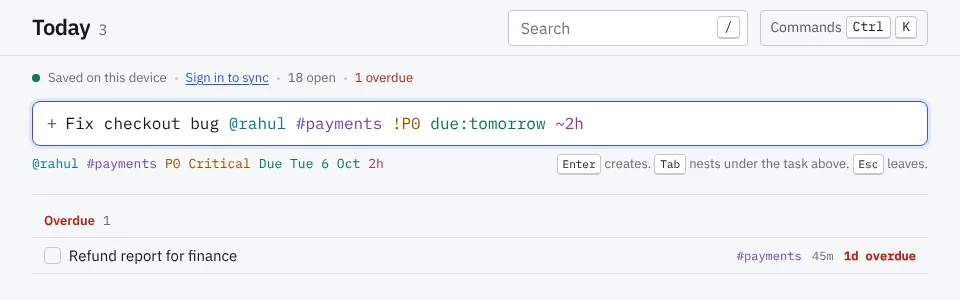
Type a task the way you would say it, with markers for the details. Everything that is not a marker becomes the title. Press Enter and it is saved.
Fix checkout bug @rahul #payments !P0 due:tomorrow ~2h
@ a person, # a project, + a tag, !P0–!P3 priority, due: and start: dates, ~ an estimate, repeat: to repeat. Under the line, PowerTodo shows how it read it before you press Enter, and it never drops a date it could not read. The full list is on the home page.
2. Views that answer questions
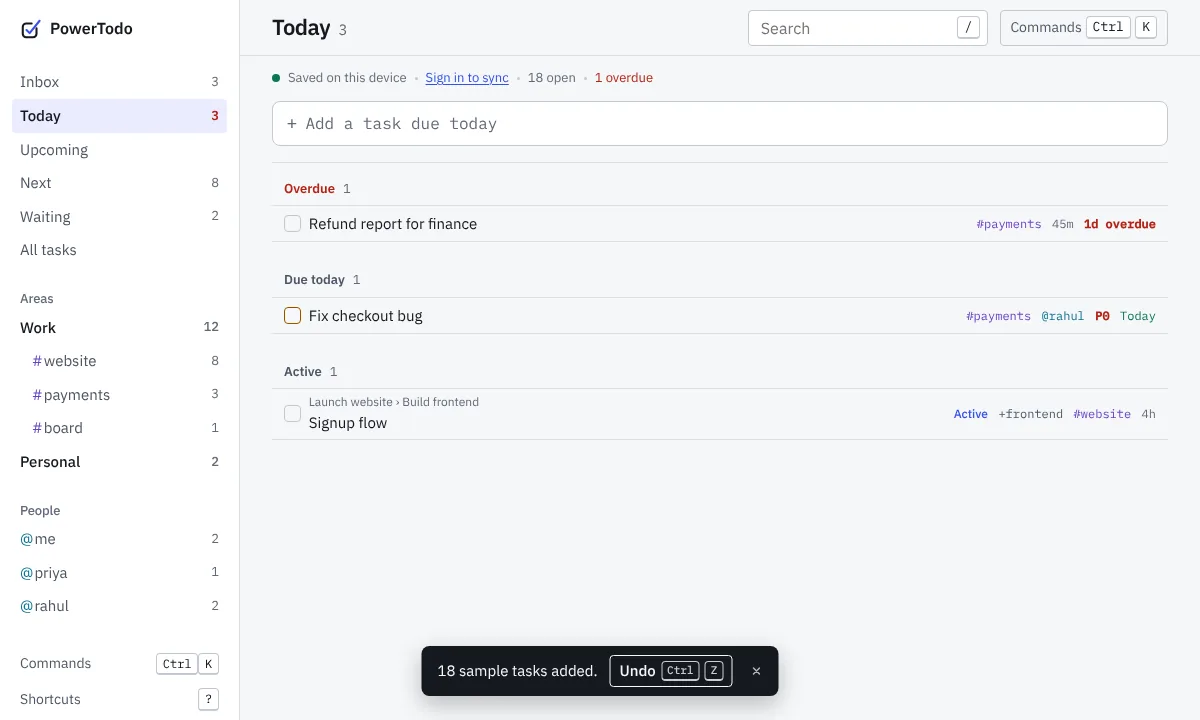
- Inbox: captured, not yet sorted. Give a task a project or a date and it leaves the Inbox.
- Today: overdue, due today, starting today and in progress, in separate groups.
- Upcoming: what is coming, by date.
- Next: what you can do now: not blocked, not waiting, not someone else’s.
- Waiting: what you are waiting for from others, and what needs a nudge.
- All tasks, each project, area (Work, Personal …) and person.
3. Organise
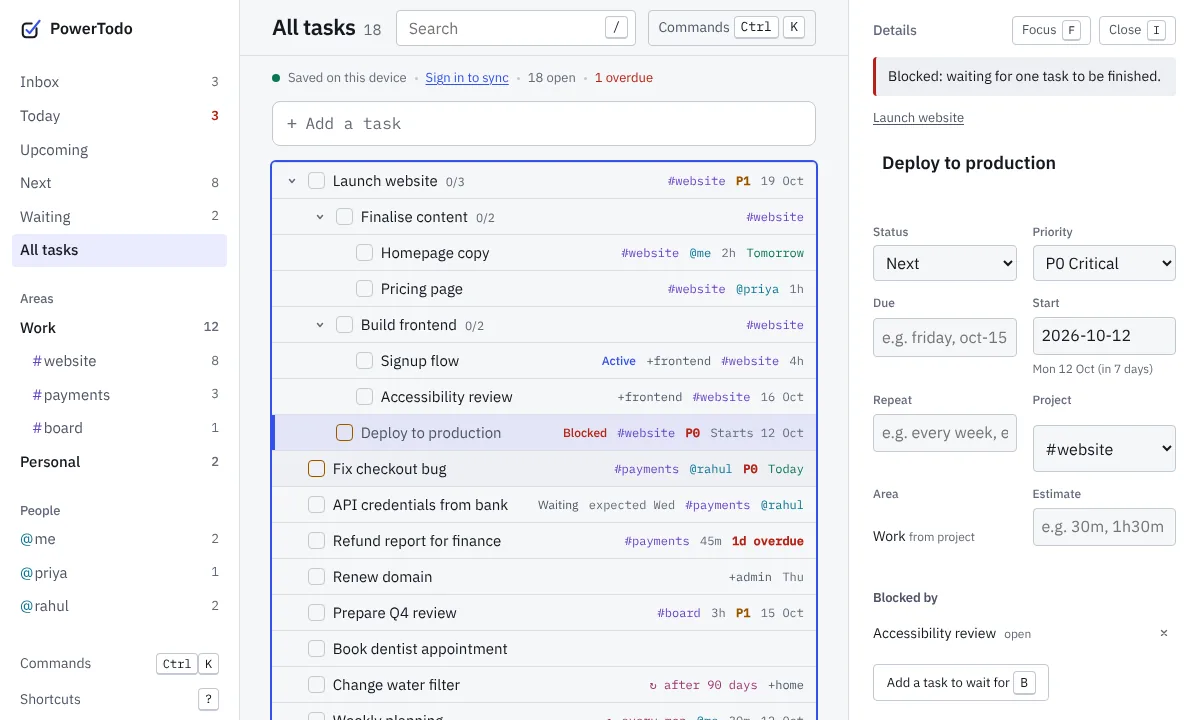
Projects finish (“Launch website”); areas never do (“Work”, “Health”); tags cut across both. Any task can have subtasks: press Tab to indent a task under the one above, Shift Tab to bring it back. Drag tasks onto a project, area or person in the sidebar to move or assign them, or onto Today to make them due today. Ctrl D duplicates a task with its subtasks.
4. Waiting, blocked and repeating
Press W when a task waits for someone, or type Waiting for Rahul on the contract. Add expect:friday for when the answer is due; the Waiting view shows what is late. Press B when a task cannot start until another one is done: it shows Blocked and stays out of Next until then. Repeating tasks (repeat:every monday, repeat:30 days after) come back with new dates when you complete them.
5. Search, sort and saved views
Press / and type words or filters: #payments due:overdue -is:blocked, priority:P0,P1 assignee:me, (due:today OR is:overdue). Add sort:due,-priority to order the results by several fields. Save view keeps the search, with its order, in the sidebar, on every device.
6. Automations
Rules you write once: when a task is created, completed, overdue, assigned to you, unblocked or marked Waiting, if it matches a search, then change it or show a message. For example: when a task becomes overdue, if it is P1, make it !P0 +escalated notify. Open them with G R. Undo reverts a rule’s change together with your edit.
7. Insights and history
Insights (G S) answers “how are things going?” with plain numbers: open, overdue, due this week, waiting and blocked tasks; charts of tasks created, completed and overdue each week; a breakdown by project or person; what has waited longest. Choose all tasks or one project, area or person, and 4, 12 or 26 weeks. Click a number to see those tasks. Download CSV gives the numbers to a spreadsheet; Print saves a PDF. Every task also keeps its own Activity in its details: when it was created, completed, rescheduled or moved, and which changes an automation made.
8. The keyboard
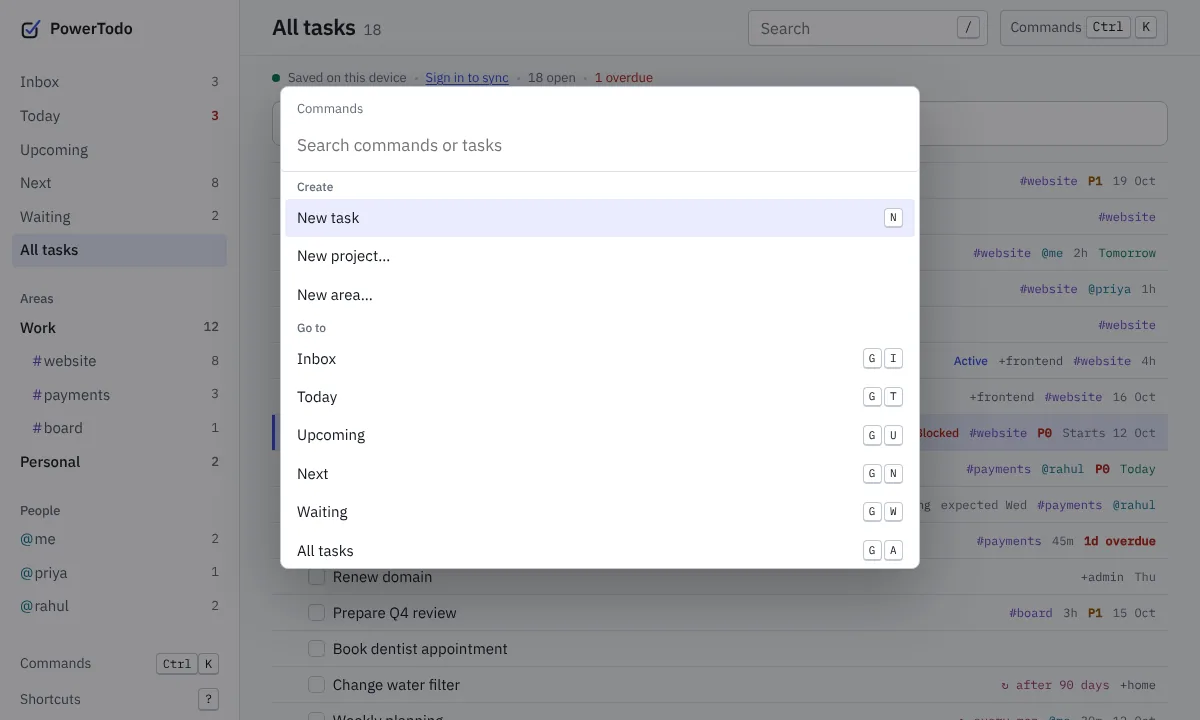
Everything has a key. J and K move, Space completes, E edits, D sets a due date, F opens focus mode (one task at a time). Ctrl K (⌘ K on a Mac) finds any command by name; ? lists the shortcuts.
9. Phones, sync and sharing
Tasks are saved on your device first, so PowerTodo works offline. Sign in with your e-mail (a code, no password) to back them up and use them on your other devices, including the Android app. Choose light or dark with Theme at the bottom of the sidebar. Share PowerTodo in the command palette gives you a link and a QR code for others. Scripts and the terminal: API and command line. More answers: FAQ.